Reading and working with Blueprints
You already know how to build software. This guide covers Sketch’s own vocabulary and UI for requirements: Blueprints, FRs, pins, proposals, redlines, the Backlog and releases.
What is Sketch?
Sketch is where Thanx turns an idea into a shipped feature, on three connected surfaces: Blueprints (requirements), Sketches (prototypes, as HTML or React) and Components (the design-system catalog).
 ✥
 ✥
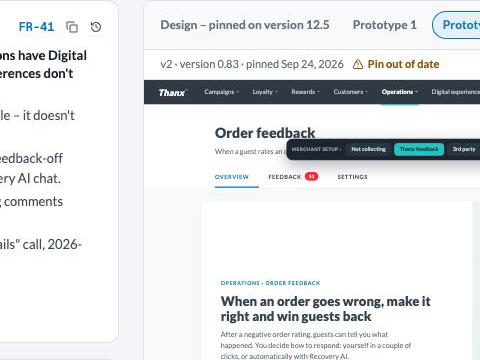 ✥
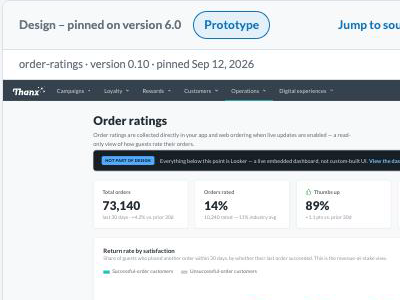
A Blueprint section pins – attaches – one version of a design, and the functional requirements (FRs) inside that section refer to elements within it. This guide covers Blueprints; the prototype viewer is in Sketches for engineers, and designer workflow is in Sketch for designers.
Reading a Blueprint
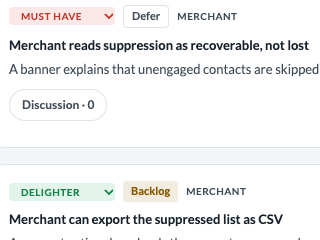
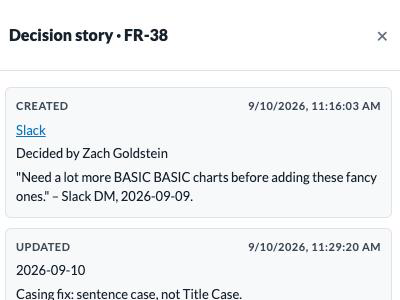
A Blueprint reads top-down: sections group functional requirements (FRs) like chapters, and each FR is one testable statement. An FR carries a priority and a decision story.
 ✥
 ✥
 ✥
 ✥
 ✥
 ✥
Reading a Prototype
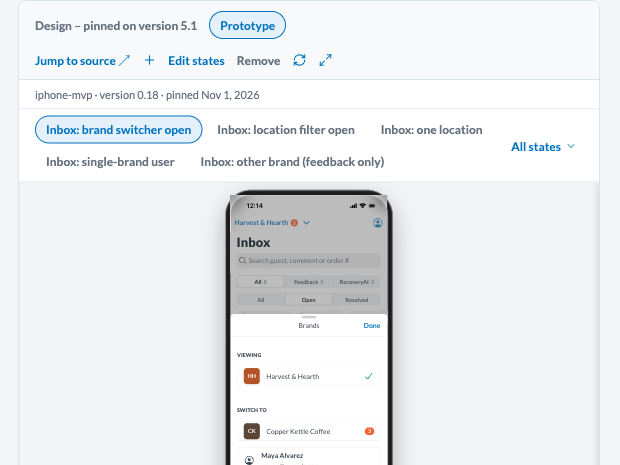
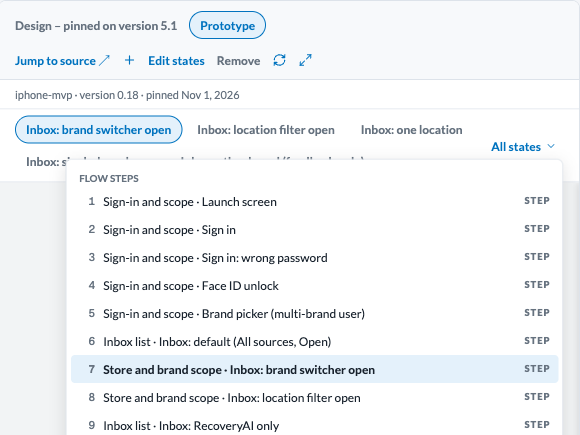
A pinned prototype is one exact version of one variant (one design approach within a Sketch), not a screenshot and not “latest”. It renders inline in the section’s design pane, and a newer upload never moves the pin by itself. A pin can carry up to 10 tabs, one per prototype state. A node with tabs opens on the first. The All states menu lists every state the prototype declares.
 ✥
 ✥
 ✥
For the viewer, versions and stages, screens and design assets, see The viewer and Versions and stages in Sketches for engineers. Finalize and the adoptable export are in Adoptable files.
Discussion
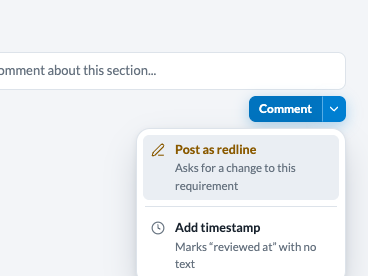
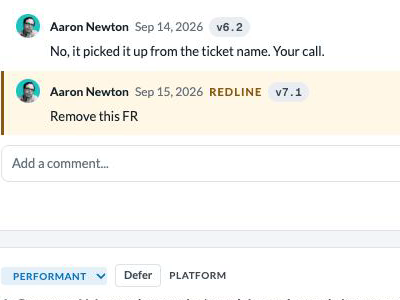
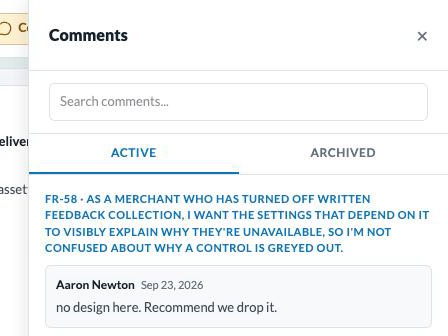
Comments live at two levels: a section comment, or a Discussion tab scoped to one functional requirement (FR). Either can be posted as a Redline – queued as a proposed rewrite instead of a plain note. The composer is a split Comment button whose menu holds “Post as redline”, and an existing comment can be promoted to a redline afterwards (see Making changes).
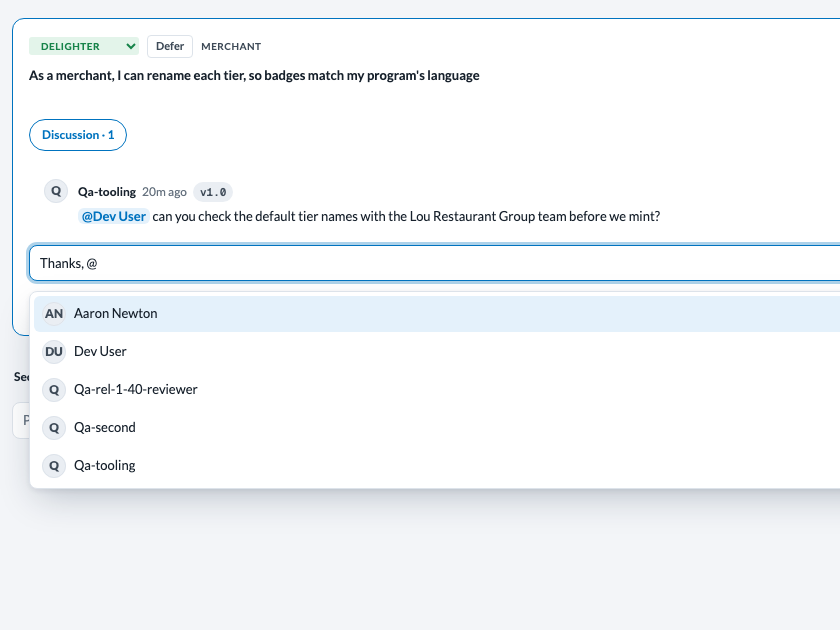
Type @ in any comment box – section, requirement or proposal review – to mention someone. They get a bell notification and a Slack DM, and the mention shows as their name everywhere the comment appears. A new comment on a requirement also notifies everyone who commented on it before, as a reply would.
 ✥
 ✥
 ✥
 ✥
Design references
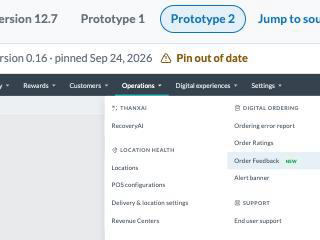
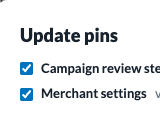
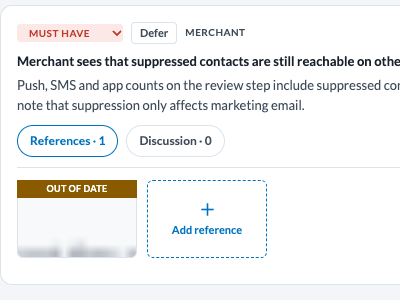
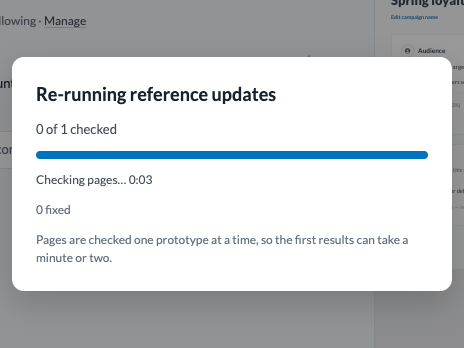
A section can hold more than one pin (an attached design). A functional requirement (FR) can also carry implementation references – pointers to one exact element in the pinned version. When a pin moves to a newer version, Sketch replays each reference against it and marks any that no longer land on exactly one element as broken.
 ✥
 ✥
 ✥
 ✥
 ✥
 ✥
 ✥
 ✥
 ✥
 ✥
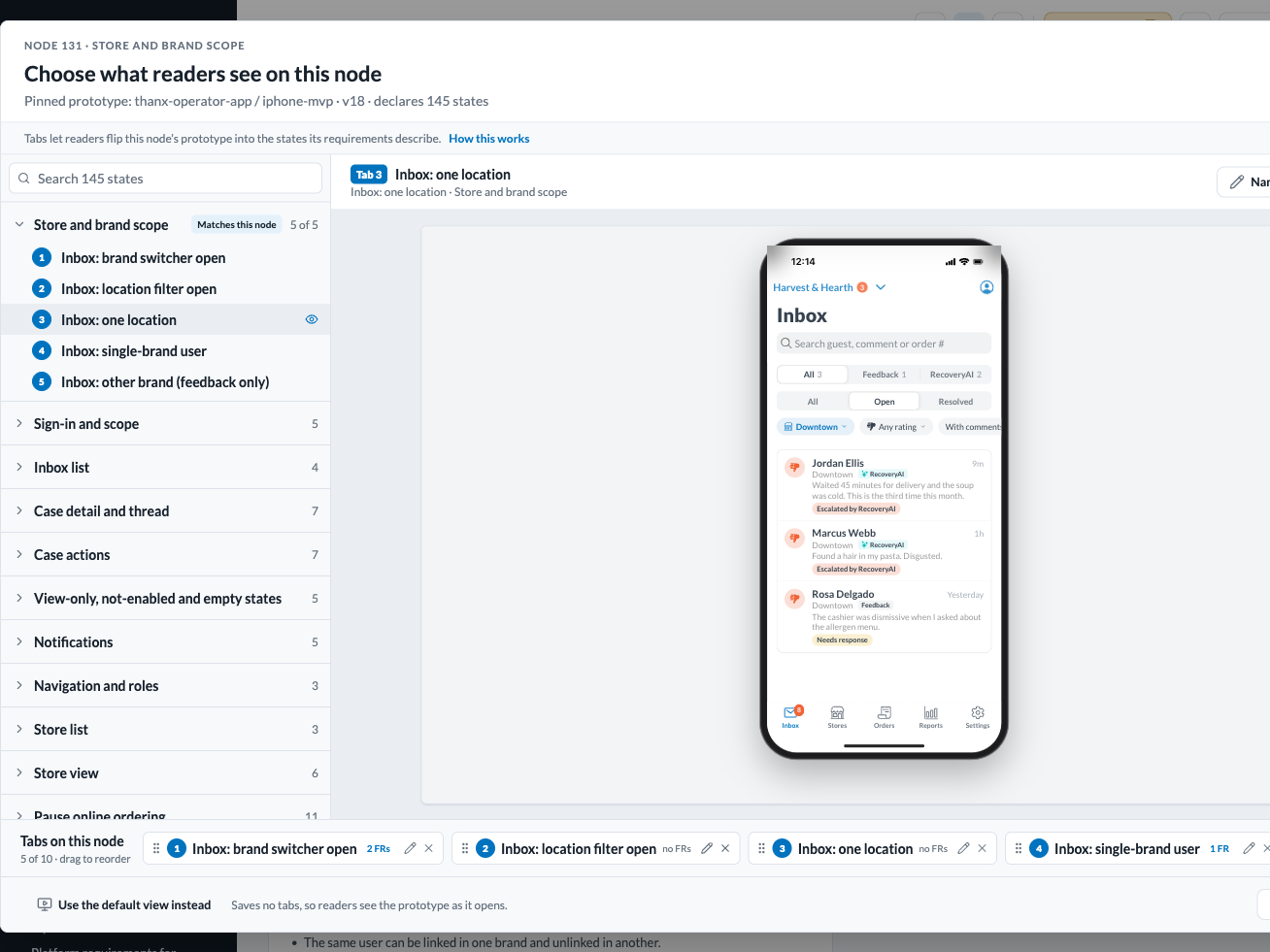
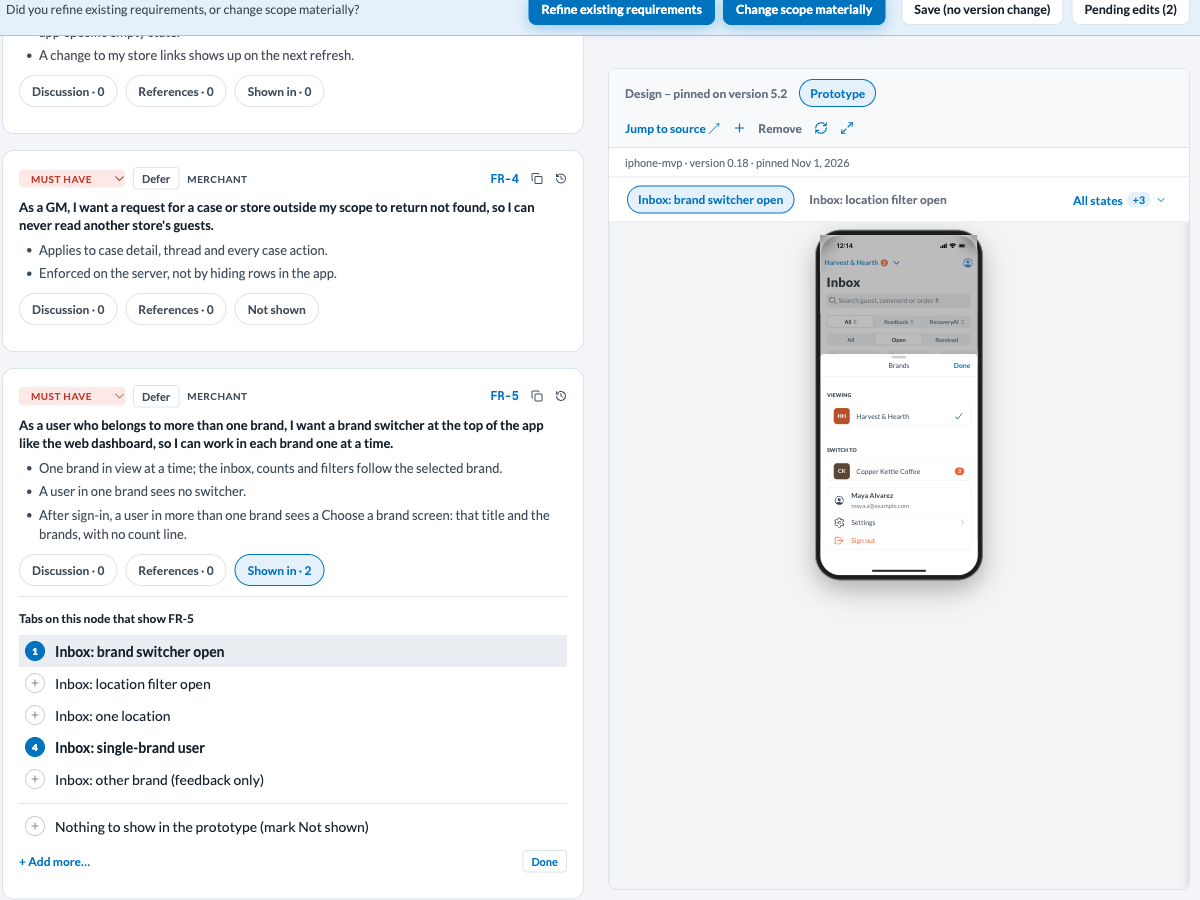
- Pin states. Pinning a design also pins what readers see. Choose up to 10 of the prototype’s page states; each becomes a tab in the node’s design pane.
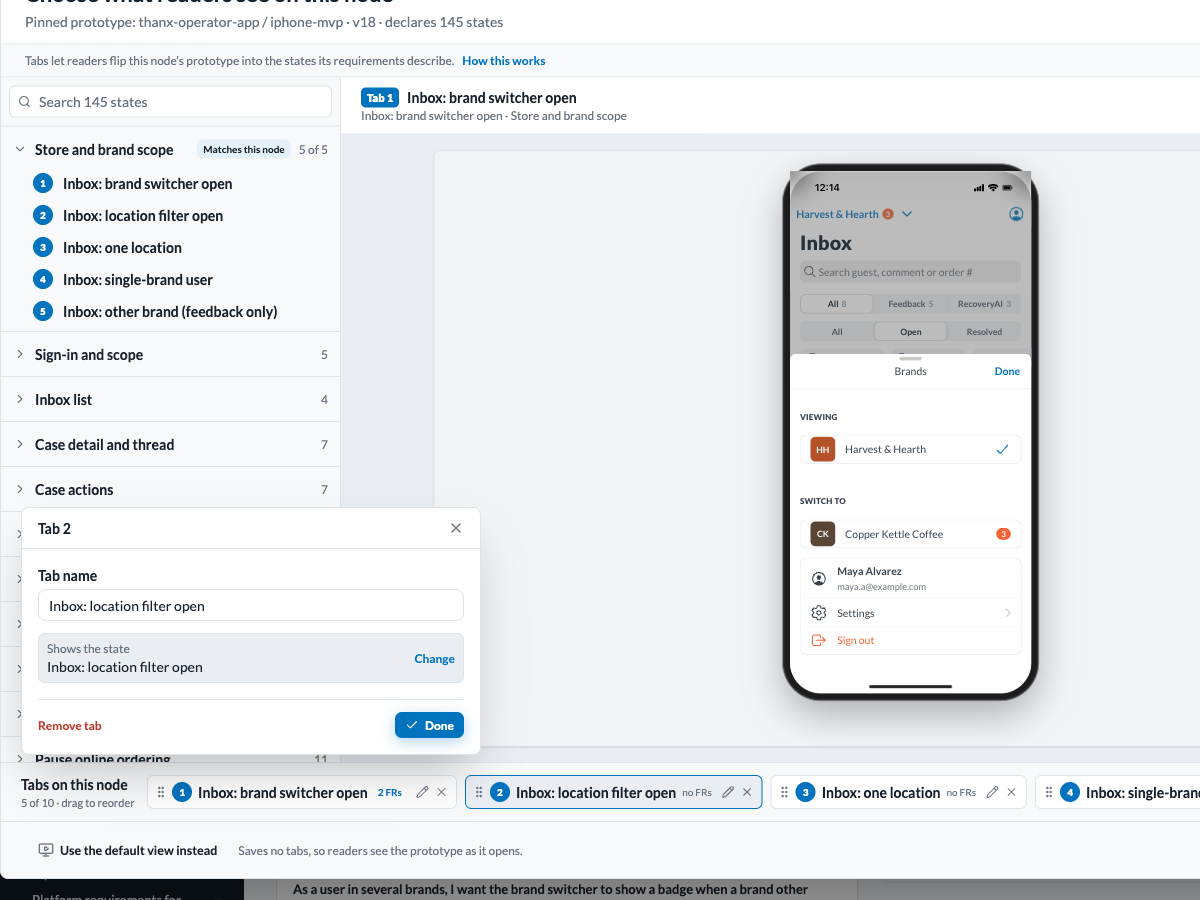
- Choose. Add a design opens a library of the prototype’s states, grouped into sections. Hover a state to preview it, click to add it as a tab. A section named like the node comes first: Add all N as tabs. Drag tabs to reorder. A pin with no tabs shows the default view.
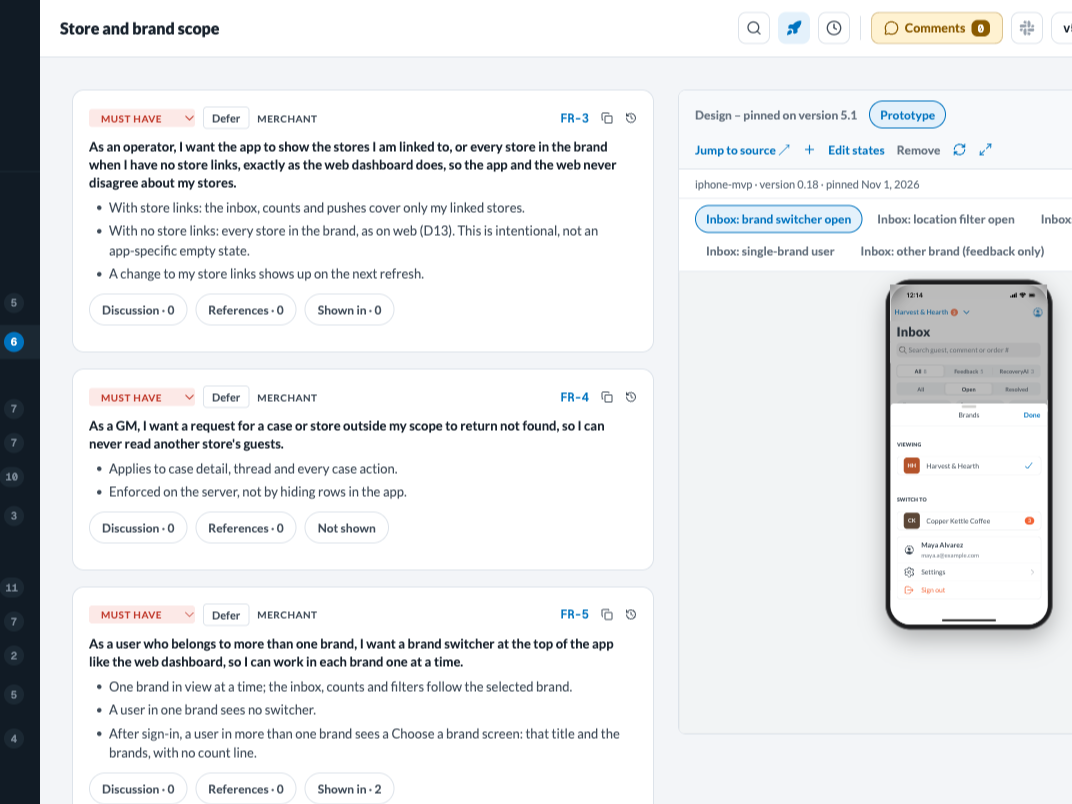
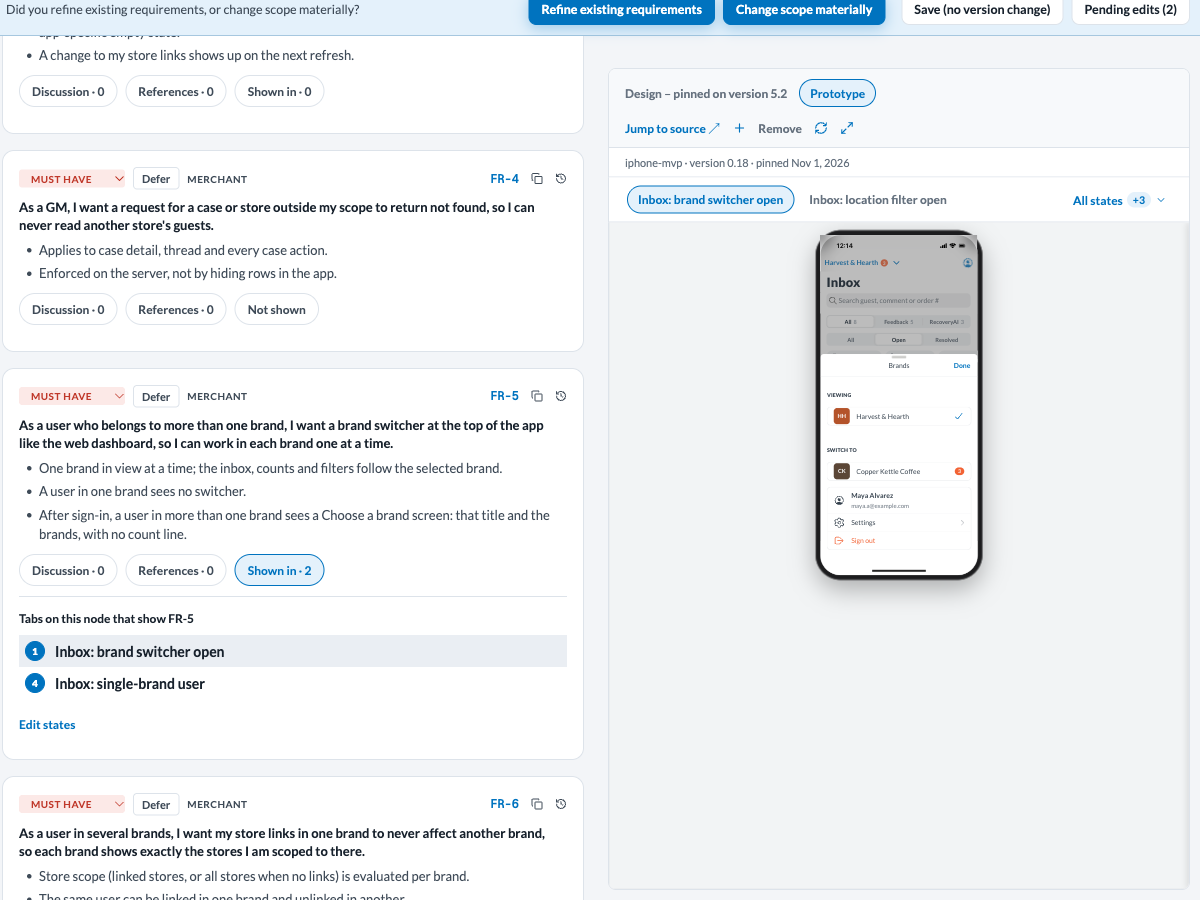
- Shown in. Each FR card has a Shown in · N pill. Open it to see the tabs that show this requirement: click a row to switch the pane to that tab. Edit states (or Add more… when no tab is linked) opens a checklist of the node's tabs: tick the ones that show this requirement, then press Done. Add more… there opens the pin states dialog to add tabs for this requirement.
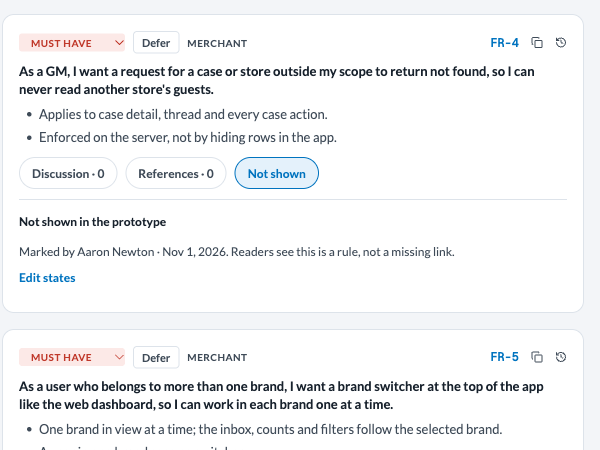
- Not shown. A rule with nothing to picture, such as an out-of-scope error, can be marked Nothing to show in edit mode. Its pill reads Not shown, and its panel is headed Not shown in the prototype, with who marked it (Edit states opens Undo). Linking a tab clears the mark.
- Stale tabs. If a newer version drops a pinned state, its tab reads Not in <version> and offers Pick a replacement. sketch upload warns when it drops a pinned state.
To read references from a terminal or an agent, use sketch blueprint reference or the blueprint_requirement_references tool. A reference captured on a tab remembers that tab’s state and replays it first. Selecting an element and copying it for Claude is covered in Implementation references. From a terminal, sketch states <sketch> <variant> lists a version’s states, and blueprint add-preview, edit-preview and proposal pin-design-slot take --page-state. Agents use prototype_page_states and page_states on the pin tools.
Making changes
Changes reach a Blueprint by several routes, and only some of them touch the live tree.
 ✥
 ✥
 ✥
 ✥
 ✥
 ✥
 ✥
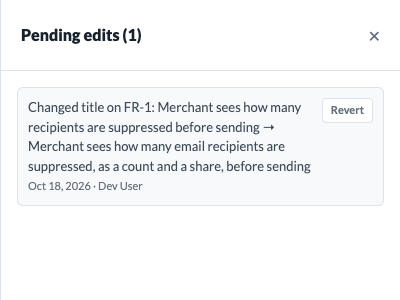
- The Blueprint page edits the live version inline: a functional requirement (FR)’s title, details, priority and Defer label. Each edit waits in the Pending edits list until you save it from the banner above the deck: “Refine existing requirements” (minor version), “Change scope materially” (major version) or “Save (no version change)”. The side panel has a Revert per row.
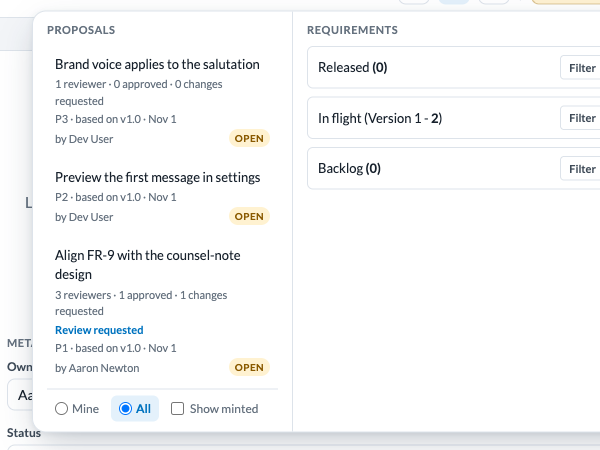
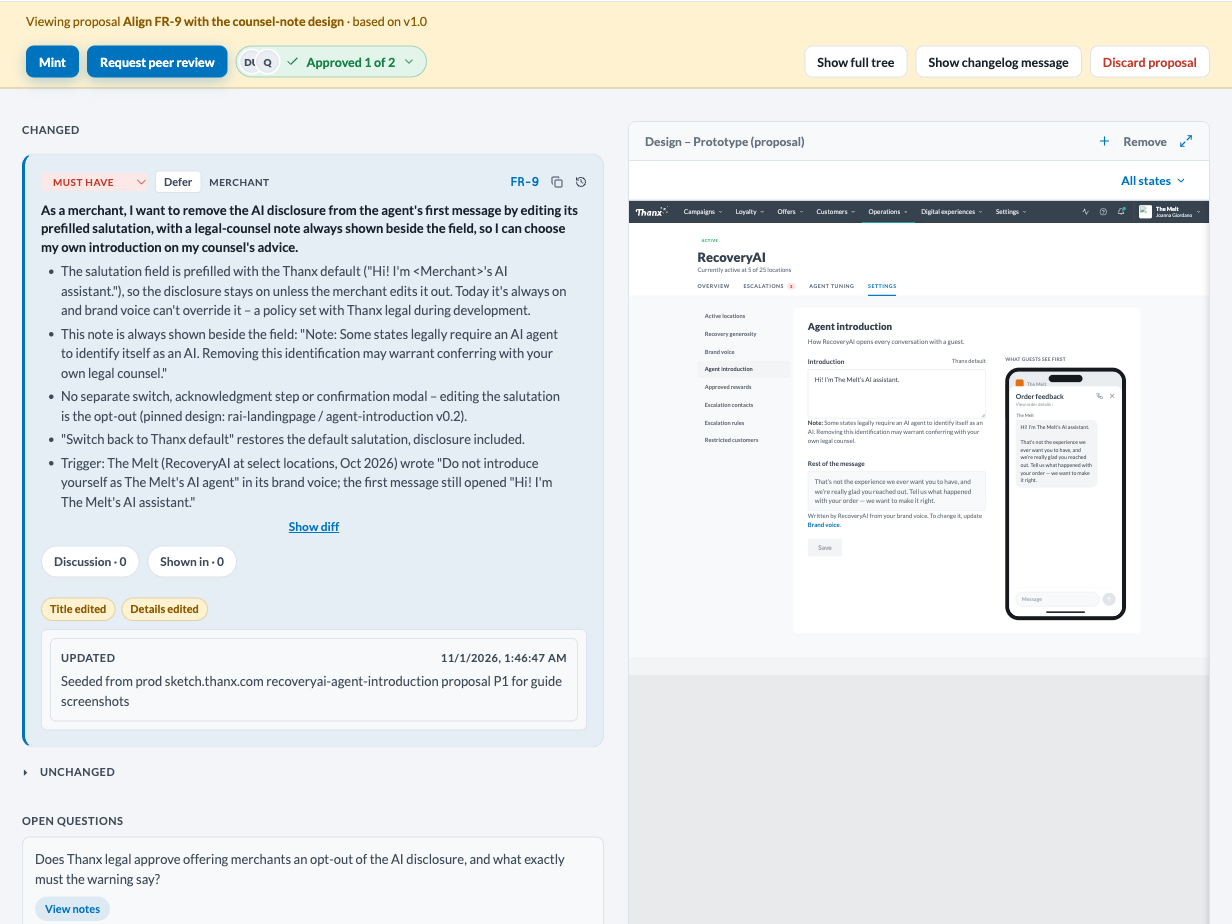
- A proposal is a draft change, shared with every collaborator and reviewable and discardable before it is live. Batched Redline comments (comments tagged to become proposed rewrites, applied with /redline), and structural drafts go here.
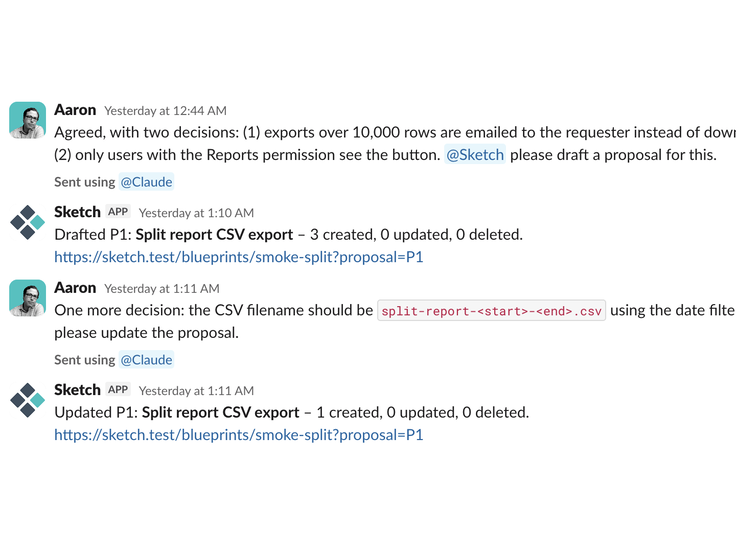
- Slack: mention @Sketch in a decision thread and it drafts a proposal. It finds the Blueprint (a slug in the mention, else the channel’s linked one), reads the thread, and replies with the proposal link. A later mention in the same thread updates that proposal. It never mints, and never creates a Blueprint. You need a Sketch account to invoke it. One draft runs per thread at a time.
- MCP (Model Context Protocol) drafts into proposals and never edits the live tree directly. A proposal goes live only through an explicit blueprint_mint_proposal call; the one direct write is blueprint_update, which changes only the name, description and metadata.
- The CLI still writes to the live tree by default. Only sketch blueprint apply-edits and move-requirement can target a proposal: --as-proposal creates a new one, --proposal <reference> adds to an existing one. add-requirement, update-requirement and delete-requirement always write live. Commands are in The CLI.
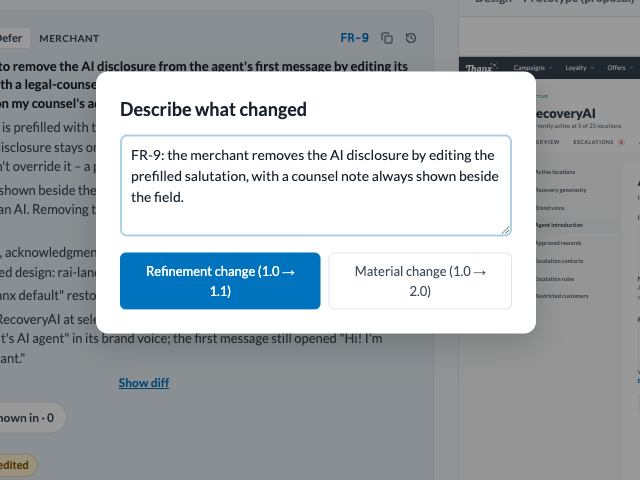
Severity. Whoever drafts a proposal sets its severity, minor or major, and it is stored on the proposal. /blueprint, /redline and the Slack bot set it. From a terminal, sketch blueprint proposal set-severity or --severity; over MCP, blueprint_set_proposal_severity.
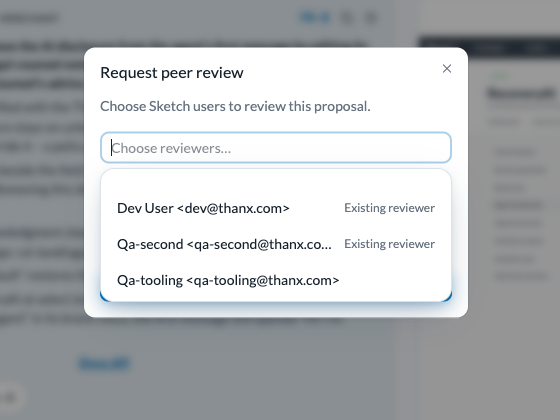
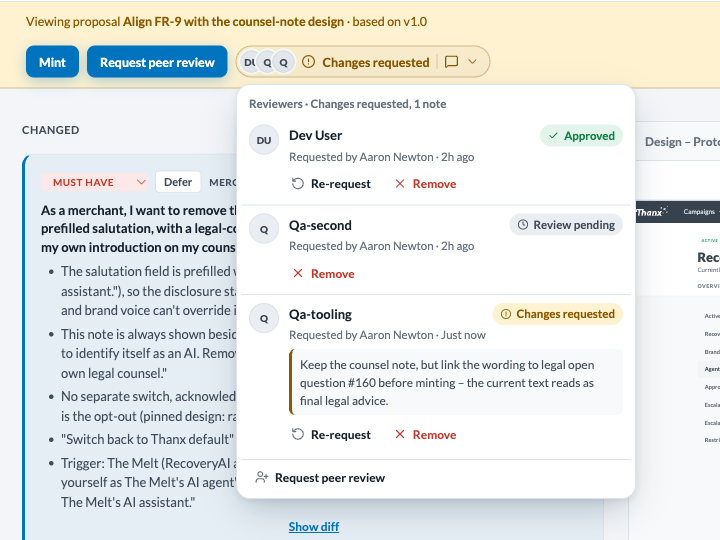
Peer review. Request peer review names reviewers from the Sketch user list; each gets a Slack DM. A reviewer approves or requests changes, with an optional note, in the web UI only. The banner shows one reviewer pill (avatars, “Approved 1 of 2”, “Changes requested”). Open it for each reviewer’s status and note, Re-request and Remove. Review is advisory: anyone can mint at any time, and approving never mints. From a terminal, sketch blueprint proposal request-review --reviewer <email> and proposal reviewers; over MCP, blueprint_request_proposal_review (needs the blueprints scope).
To see what changed, blueprint_diff compares two versions and blueprint_pending_changes diffs the live tree against its last accepted state. Shapes are in the Appendix.
Notifications
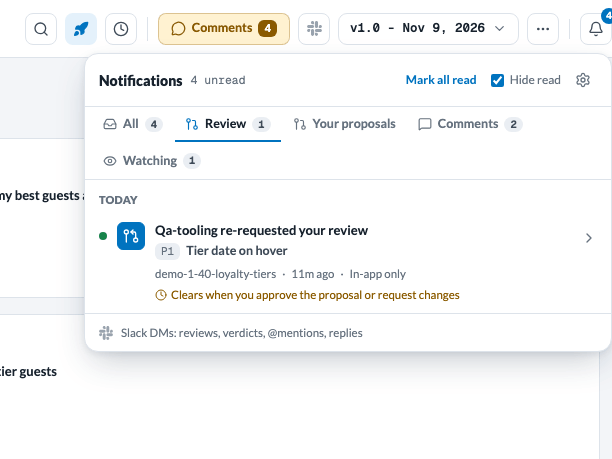
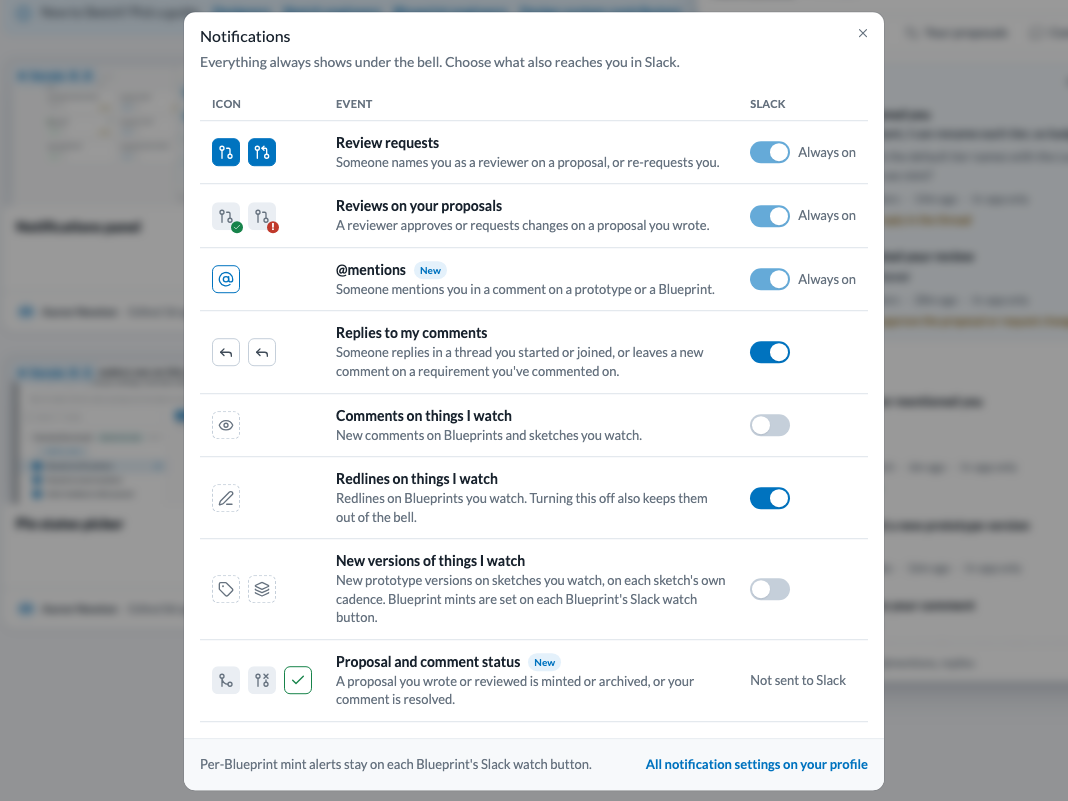
The bell, last in the Blueprint top bar and in the main navigation bar, shows everything that involves you, whatever your Slack settings. Tabs split it into All, Review, Your proposals, Comments and Watching. On All, Waiting on you pins review requests, changes requested on your proposals and @mentions; each says what clears it, and clears when you act there or Dismiss it. Clicking a row opens its target and marks it read. Hide read, on by default and remembered for you in this browser, shows only unread rows, Waiting on you included; turn it off to see your history. Mark all read leaves waiting items unread. The gear opens Notification settings, the same table as your profile: Icon, Event and Slack.
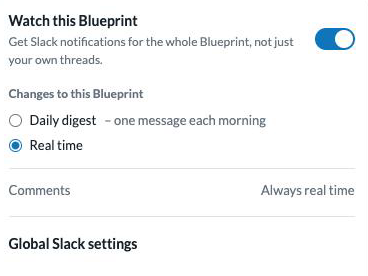
Sketch can direct-message you about a Blueprint or a sketch. The Watch button in the top bar (the Slack mark, with a green dot while you watch) opens one panel: watch or unwatch, then pick Daily digest or Real time for changes. Comments are always real time.
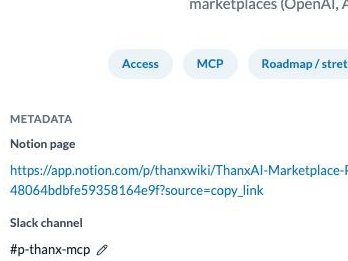
The same panel holds your account-wide Slack toggles. After your first comment on a Blueprint, a prompt also offers to watch it. Changelogs go to watchers as DMs, not to a channel. A Blueprint’s Slack channel, set on the title slide, gets a bookmark when it is linked. You can request a one-time link announcement; release posts go to that channel only when Slack Channel Releases is on. Review DMs always arrive, whatever your Watch settings: a reviewer someone named, or an author whose reviewer answered. So do @mention DMs. Reply DMs are on unless you turn them off. Turning off Redlines on things I watch keeps redlines on Blueprints you watch out of both the bell and Slack.
Slack can also draft proposals: mention @Sketch in a decision thread. See Making changes.
 ✥
 ✥
 ✥
 ✥
 ✥
Lifecycle
A requirement moves through Backlog, a release cycle, testing and a numbered release.
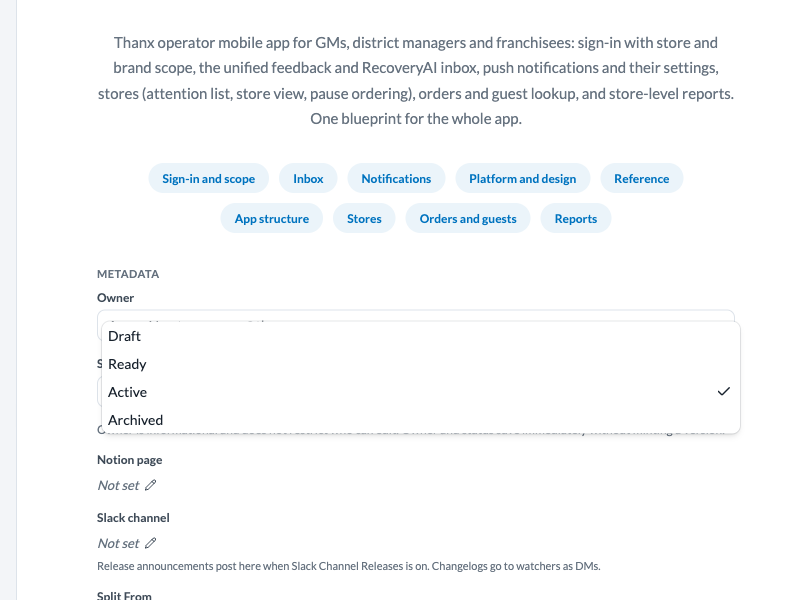
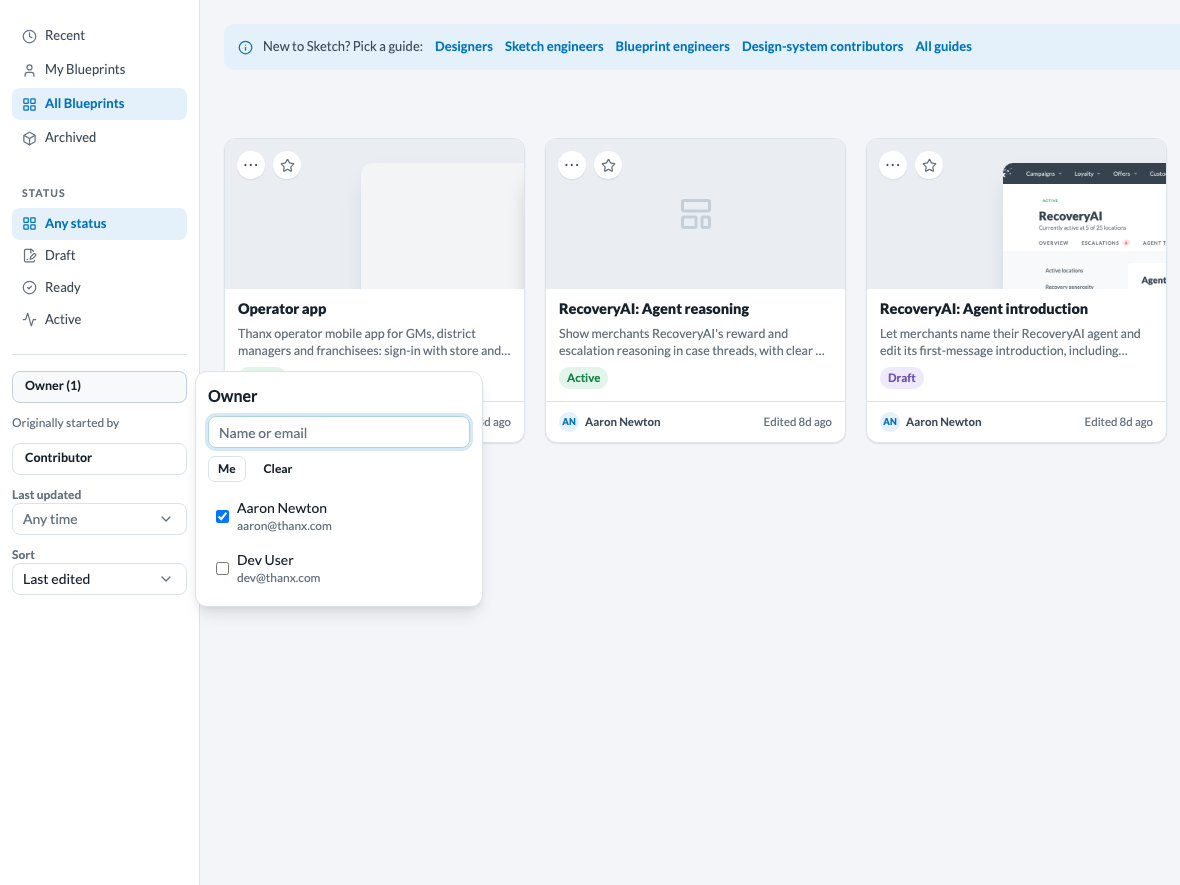
Owner and status. Every Blueprint has an owner (its creator, until you change it) and a status: Draft, Ready, Active or Archived. Set both on the title slide. Changes are live, never mint a version and never appear in a changelog. The status pill sits in the left rail; the Blueprints list shows status and owner on each card and filters by either. Its search matches names, descriptions, starters and contributors, and combines with status, a time window, sort and two people pickers: Owner (who originally started the Blueprint, not its current owner) and Contributor (who minted a version or authored a proposal). The address bar keeps the view, so the link shares it. My Blueprints means owned by you. Archived hides a Blueprint from the default list; pick another status to bring it back. Owner is a label, not a permission. From a terminal, sketch blueprint update --owner <email> --status <status> and list --status --owner. archive and unarchive are gone; use update --status archived.
 ✥
 ✥
 ✥
 ✥
 ✥
 ✥
 ✥
 ✥
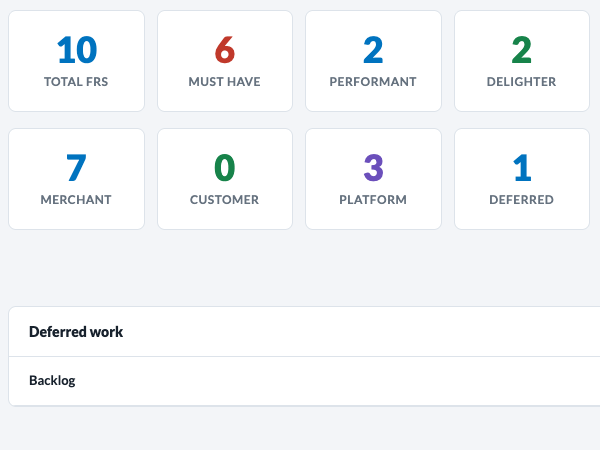
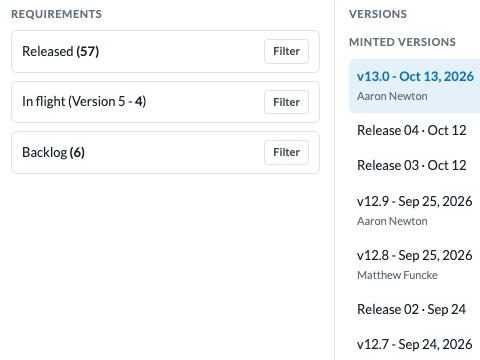
- Backlog is a label on a requirement (deferred_to). Backlogged work sits outside every cycle. The Overview slide’s Deferred work list has a Bring into scope action; each move is one version.
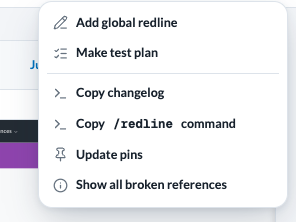
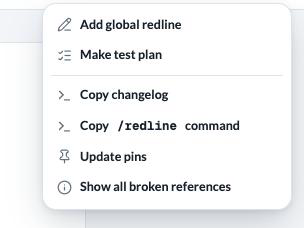
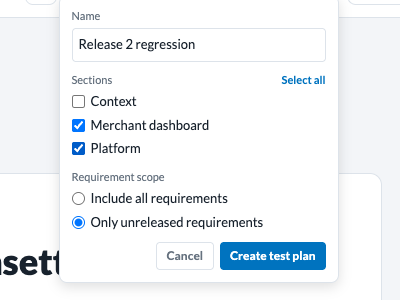
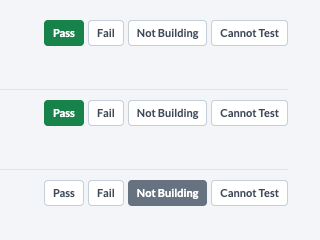
- Testing: Make test plan is in the ⋯ More actions menu (it reads Test plans once the Blueprint has one). Name it, pick sections, then grade each requirement Pass, Fail, Not Building or Cannot Test. Backlogged requirements are never added to a plan.
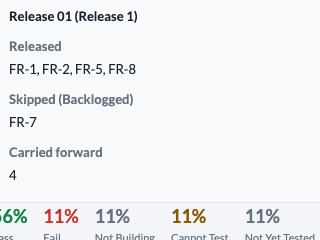
- Releases: Create release in test mode records the Pass-graded requirements as Release N and ends the plan. Backlogged ones are skipped and named in the result.
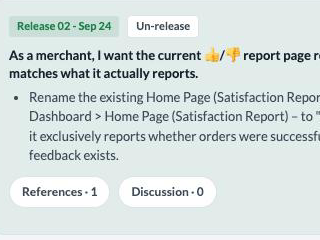
- Locks: a released requirement cannot be edited or deleted until you Un-release it on its card. The same lock blocks deleting its section and restoring an older version.
- Release cycle: the in-flight work is derived, never stored. Creating a release starts the next cycle, and anything unreleased and not in the Backlog carries into it.
Connecting
Blueprints are reachable from Claude over MCP and, read-only, from Keystone. Connecting, tokens and the rest of the MCP tools are in MCP and Keystone; the CLI is in The CLI.
Blueprint tools
- Read: blueprint_list, blueprint_show, blueprint_comments, blueprint_versions, blueprint_diff, blueprint_pending_changes, blueprint_requirement_history, blueprint_requirement_references.
- Proposals: blueprint_list_proposals, blueprint_get_proposal, blueprint_create_proposal, blueprint_apply_to_proposal, blueprint_apply_comments_to_proposal, blueprint_mint_preview, blueprint_mint_proposal, blueprint_archive_proposal, blueprint_set_proposal_severity, blueprint_request_proposal_review.
- Pins and metadata: blueprint_pin_proposal_design_slot, blueprint_unpin_proposal_design_slot, blueprint_update. blueprint_update takes owner and status; blueprint_list and blueprint_show return them. blueprint_show also returns each pin’s page_states and not_shown_requirements (read-only), and the pin tools take page_states.
Token roles. A personal token created with the Blueprint drafter role reads anything and writes only Blueprint proposals; it cannot comment or mint. Full access is the default. See MCP and Keystone.
Keystone
Keystone is the read-only proxy other Thanx tooling uses to query internal systems. Blueprints and prototypes are there as sketch_* tools, such as sketch_get_blueprint and sketch_list_blueprint_proposals.
Glossary
- Sketch
- The platform as a whole: Blueprints (requirements), Sketches (prototypes) and Components, connected by design pins.
- Blueprint
- A structured requirements document: a tree of sections, each holding FRs or, for a context section, plain markdown.
- FR
- Functional requirement – a single, atomic, testable statement inside a section.
- Proposal
- A draft set of changes to a Blueprint, shared with every collaborator and reviewable before it is live.
- Mint
- Turning a proposal into a new live Blueprint version: a minor version for refined requirements, a major one for a material scope change.
- Version
- A minted snapshot of a Blueprint, labelled major.minor; a new Blueprint starts at the unnumbered Initial (0.0). Prototype versions are separate; see Versions and stages.
- Stage
- Where a prototype version stands: a private Draft, Iterating (published versions before a Finalize) or Finalized (N.0, with its N.x iterations). Defined in Sketches for engineers.
- Variant
- One competing design approach within a Sketch, each independently versioned.
- Pin / design slot
- The link from a section’s design pane to one exact prototype version. Reads “Pin out of date” when the prototype has a newer one.
- Implementation reference
- An FR’s pointer to one exact element inside its section’s pinned version. Broken (“Out of date”) when a newer pin no longer resolves it to a single element.
- Redline
- A comment tagged to become a proposed rewrite, applied in bulk with /redline.
- Context section
- A section that renders plain markdown for background or out-of-scope notes and holds no FRs.
- Backlog
- The label (deferred_to) on a requirement set aside for later. Backlogged work belongs to no release cycle and is never added to a test plan.
- Release
- A numbered record (Release 01, 02, …) of the Pass-graded requirements in a test plan. Releasing locks those requirements until you Un-release them.
- Release cycle
- The set of work a Blueprint is trying to ship in one go. Derived, not stored: unreleased, non-Backlog requirements. Creating a release starts the next cycle.
- Test plan
- A named check-off list over the sections you choose, graded Pass, Fail, Not Building or Cannot Test.
- Owner
- The person a Blueprint is labelled with, its creator until changed. A label, not a permission.
- Status
- Draft, Ready, Active or Archived. Set on the title slide, live, and never a new version.
- Peer review
- Named reviewers approve or request changes on a proposal. Advisory: anyone can still mint.
- Pinned state (tab)
- One of up to 10 prototype page states a pin shows as a tab in the node’s design pane.
- Shown in
- The pill on an FR card listing the pinned tabs it is linked to, or Not shown when it has nothing to picture.
- Watch
- A Slack DM subscription for a Blueprint or sketch. The Watch panel sets its change cadence and your global Slack toggles; comments are always real time.
Appendix: Blueprint tool reference
Behaviour behind Making changes and Connecting. Useful when you are calling these tools, not required reading otherwise.
For notification delivery and Blueprint channel metadata, see Notifications: changelogs go to watchers as DMs; channel release posts require Slack Channel Releases.
Rich vs. thin fetches
blueprint_show defaults to thin: the node tree and requirements, plus each node’s pinned previews and open questions with note counts (never note text), but no requirement details prose until you pass detail (“full”, one identifier or node id, or an array of them). blueprint_diff and blueprint_pending_changes return a change log, not a full tree.
Diffs
blueprint_diff takes slug with from and to version labels, or since (a duration such as 7d, or an ISO date). It defaults to since the last major version. blueprint_pending_changes takes only slug.
History and references
blueprint_requirement_history takes slug and an identifier (or an array of them) and returns each decision story. blueprint_requirement_references takes slug and one FR identifier and lists its implementation-reference attachments.
Proposal flow
blueprint_create_proposal → blueprint_apply_to_proposal (each requirement change carries a why or a full provenance) → optionally blueprint_set_proposal_severity → blueprint_mint_preview, which returns the live digest → blueprint_mint_proposal, which needs that digest and should run only on an explicit request.