Sketch for designers
You describe what you want, Claude builds it, and Sketch hosts it for review. This guide follows one sketch from a private first pass to the version engineers build from.
What Sketch is for designers
Sketch hosts clickable prototypes. You work by talking to Claude Code; the web app is where you look, mark things up, and share.
- Draft – a private copy only you can see. Claude replaces it as you iterate.
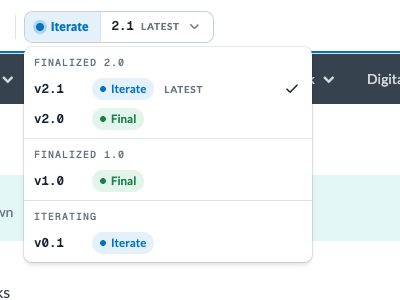
- Publish (0.x) – the draft becomes version 0.1, then 0.2. Shareable and commentable, and a checkpoint, not a quality bar.
- Finalize (N.0) – the engineering hand-off. Ask Claude to finalize; it is for React (merchant-ui) sketches and reports.
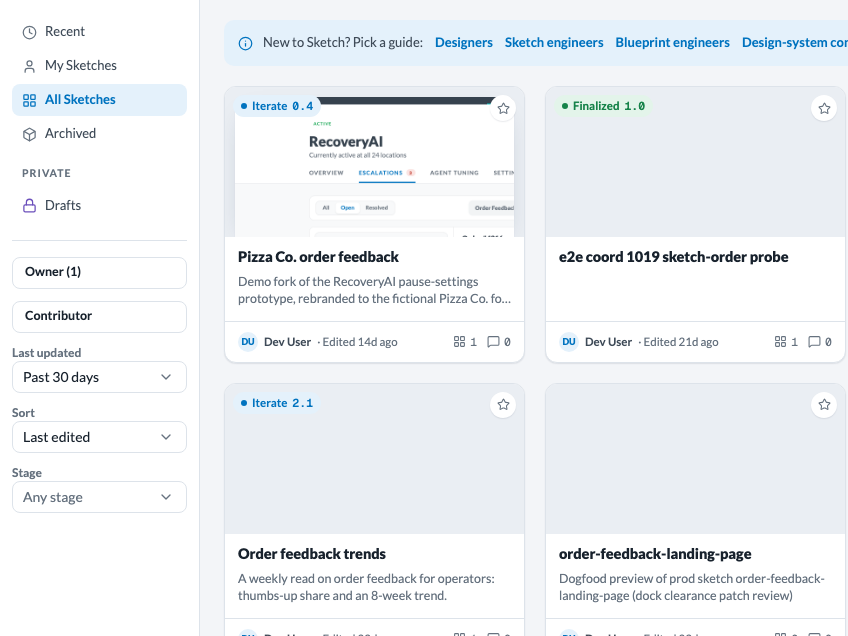
Sketches home and the Blueprints list share one search: it matches names, descriptions, creators and contributors by name or email. It combines with the Owner and Contributor pickers, a time window, the sort and, on Sketches home, the Stage filter. The address bar keeps the whole view, so copy it to share a filtered list.
 ✥
 ✥
Before you start
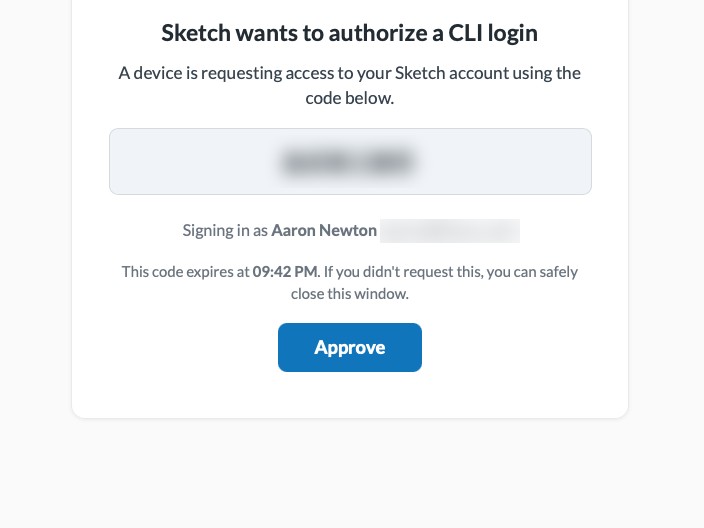
You need a Google sign-in for the web app and Claude Code in a checkout of the Sketch repository. Claude handles the rest, including logging you in.
Log me in to Sketch.
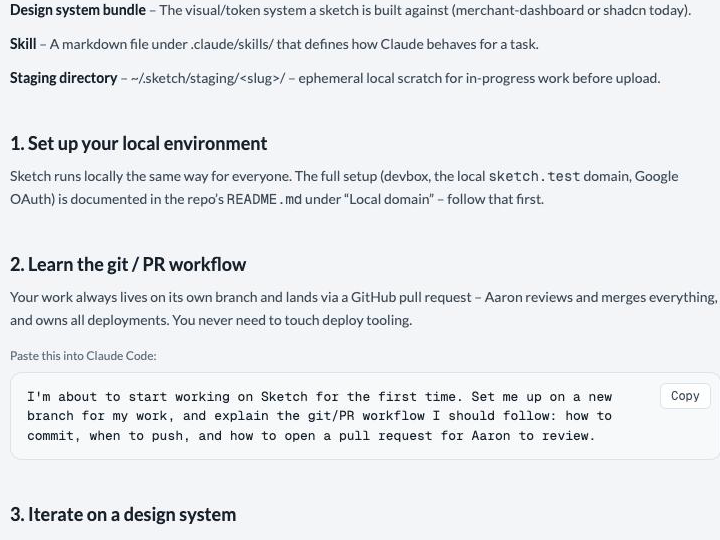
Approve the code in the browser tab that opens. Setting up a local environment is in Contributing to Sketch, step 1. Claude Code in the Sketch checkout loads Sketch’s guide topics as skills, so it follows the same workflow without being told.
You pick a design system when you start a sketch. merchant-ui builds React prototypes and is the only design system that can be finalized; merchant-dashboard and shadcn build single-file HTML prototypes. Reports read live data and have their own path to Finalize; see Reports.
 ✥
 ✥
Start a sketch
Type /sketch and give Claude a Notion PRD link, any URL, or a plain description. With nothing, it interviews you.
/sketch <link to the PRD>
Claude asks a few questions, one at a time: the design system, whether you want a few wireframe ideas (and what they should vary), how far to stray from the system, the device, which states to show, and real or placeholder data. It then writes a brief and builds one draft.
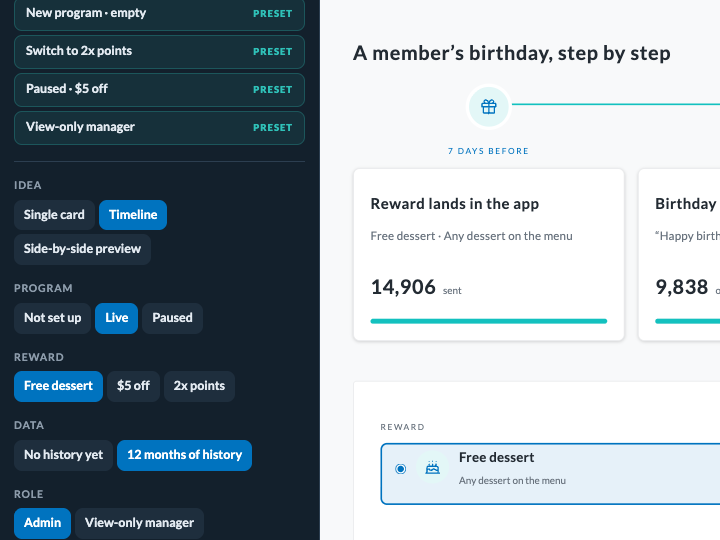
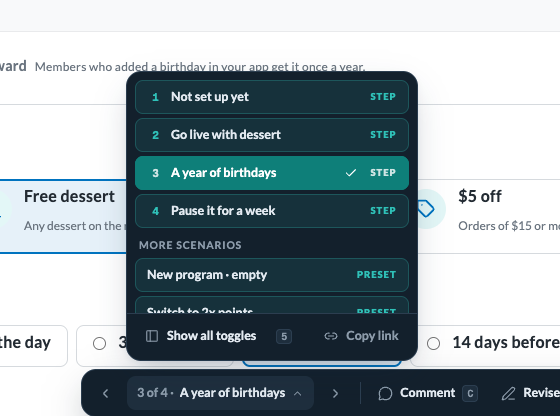
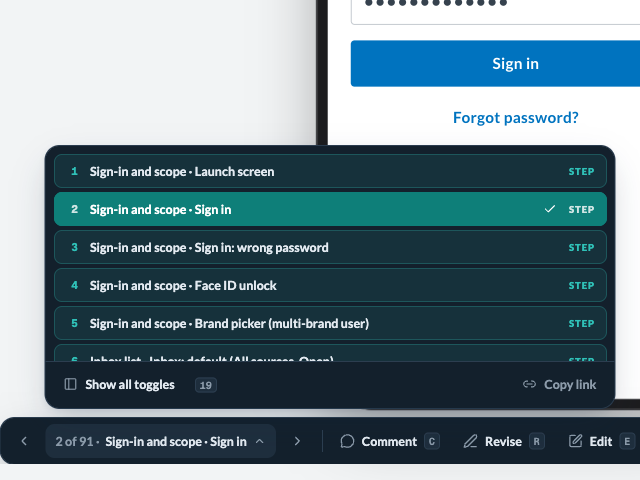
Ideas, and variations such as a feature on or off, a permission or sparse data, become page states. Scenarios in the dock lists the flow's steps or the presets, named combinations applied in one click, with previous and next arrows to step through them; Show all toggles opens a rail on the left with the screen and every toggle. A page with only toggles gets a Toggles button that opens the rail directly. Copy link copies a link that opens the page in its current state.
Name states for the reader of a Blueprint, as Section · State, for example Store and brand scope · Brand switcher open. Blueprint authors pin these as tabs, and a section named like their node is offered first. ← and → step through the flow.
 ✥
 ✥
 ✥
 ✥
Work in a private draft
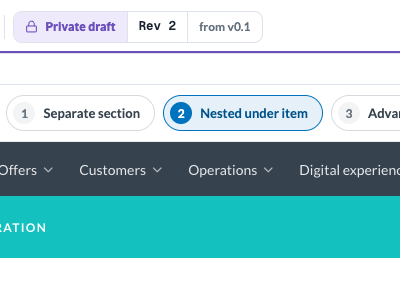
Claude uploads your first pass as a draft – a private, replaceable copy only you can open – and gives you the link. The top bar turns purple and reads “Private draft”.
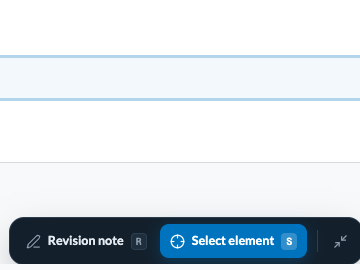
- The bottom toolbar (the dock) has Revision note (R), a pin that tells Claude what to change, and Select element (S), which points Claude at an exact part of the screen. It also carries a collapse button, plus Scenarios for switching screens, steps and states when the page has them. A draft takes no comments, because nobody else can see it.
- The page refreshes itself when Claude uploads a new revision, and a note you are typing is kept.
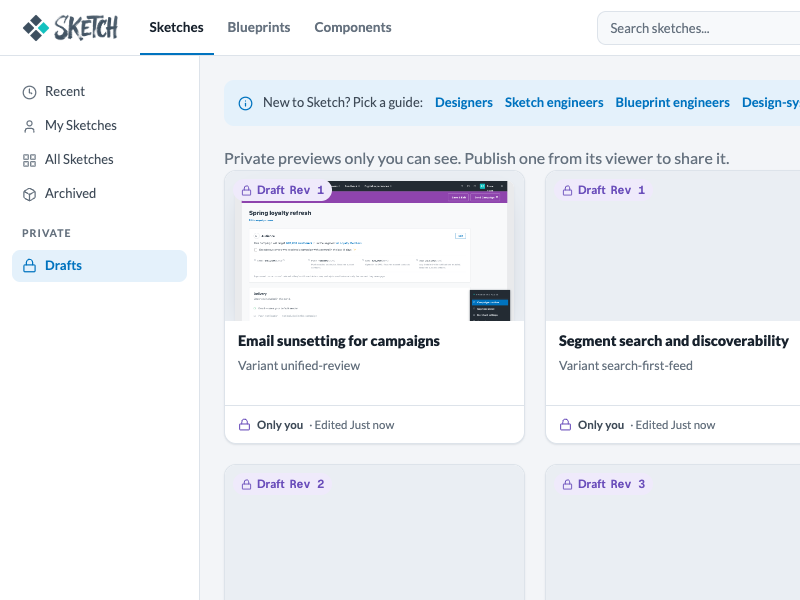
- Your drafts are under the Drafts filter on Sketches home. Design assets, in the top bar, shows components, tokens and notes; see Design assets in the engineers' guide.
Keep the draft preview live while we iterate.
 ✥
 ✥
 ✥
Publish and get feedback
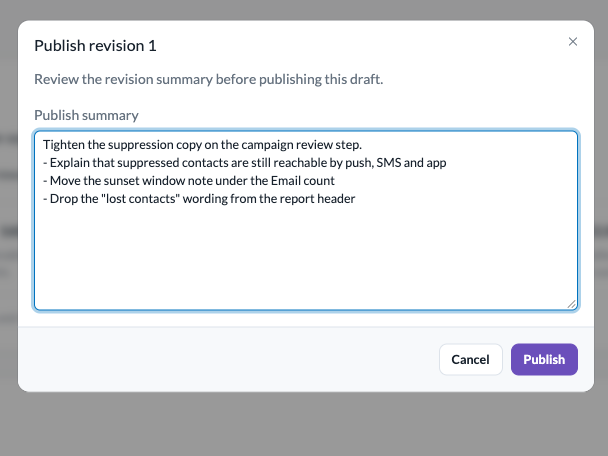
Review and publish opens the summary Claude wrote. Confirm, and the draft becomes the next 0.x version; a small notice links to it and your draft stays. If someone published a newer version meanwhile, Sketch says so and lets you publish over it or go back. If you publish without a state a Blueprint pinned, Sketch warns, and that Blueprint tab turns stale.
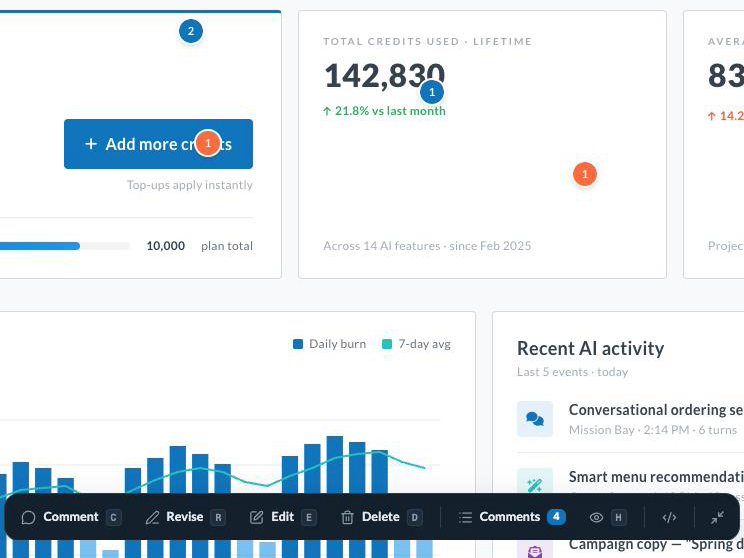
On a published version there are two kinds of pin. A comment (C) is discussion with replies. Revise (R) adds a revision note, a request for Claude, and only revision notes feed /resketch.
Apply the pending revisions on my sketch.
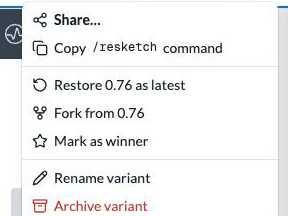
- One resketch makes one new version covering every pending revision note. The … menu's “Copy /resketch command” copies the same request.
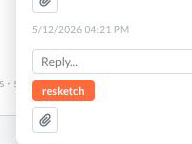
- A comment thread that turned into a request: press its resketch button. The thread then shows a checked /resketch box; unchecking it makes the thread a normal discussion again.
- A comment or revision note remembers the page state it was left in. Opening it puts the page back in that state, and the popover names it on a “State:” line.
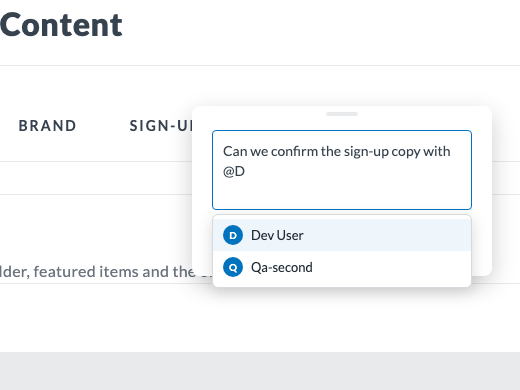
- Type @ in a comment or reply to pick a person. They get a notification and a Slack DM; editing a comment notifies only people newly added.
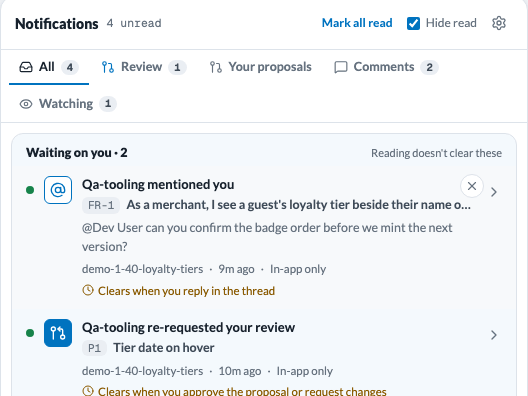
- The bell in the main navigation bar collects what involves you. On All, Waiting on you holds review requests, changes requested on your proposals and @mentions. Each says what clears it, and it clears when you act or Dismiss it; reading never clears it, and Mark all read leaves it unread. Hide read, on by default and remembered for you in this browser, shows only unread rows, Waiting on you included; turn it off to see your history. A comment opened from the bell stays open until you press Esc, close it or click outside. The gear opens Notification settings, the same table as your profile: everything shows under the bell, and you choose what also reaches Slack.
- Small text changes and removals on HTML prototypes: Edit or Delete in the bottom toolbar, then Save, which makes a new version. React prototypes have no inline edit; ask Claude to change the source.
 ✥
 ✥
 ✥
 ✥
 ✥
Briefs and decisions
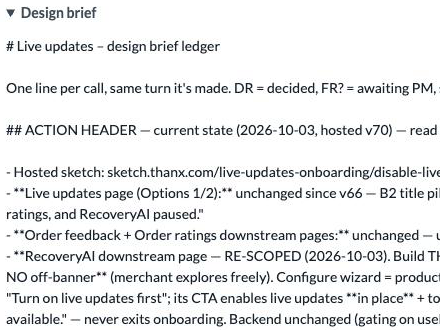
The brief is the context a sketch carries: the problem, the goal, what to reuse, and what to avoid. Claude writes it at the start and pushes it to the sketch page; later runs and other people read it instead of re-asking you. To change it, ask Claude.
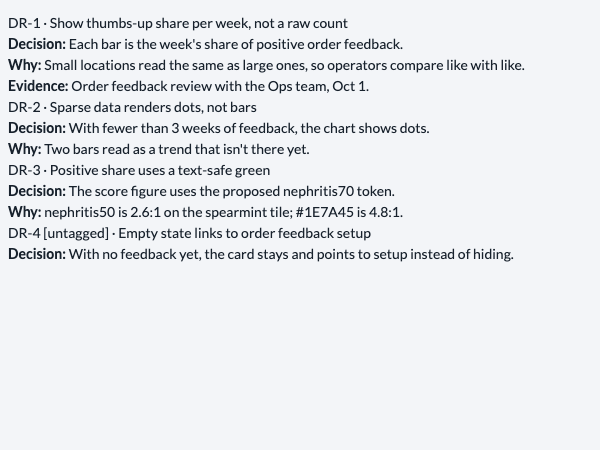
The decision record is a notes page of numbered decisions (DR-1, DR-2…) with the reason behind each. Claude can tag the element that shows a decision, so the record and the screen stay in step. Mismatches show up as warnings and never block anything.
Record that the refund toggle defaults to off, and tag it on screen.
✥
 ✥
Share and hand off
Hand a colleague a published version's link plus the brief. Never a draft; nobody else can open it. To point a colleague at one particular state, send the link from Copy link in Scenarios.
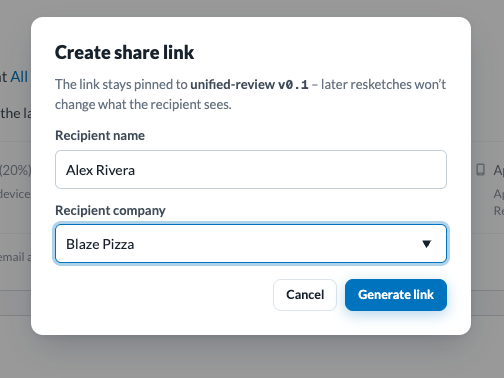
To share with someone outside Thanx, use Share… in the … menu: give a recipient name and company, and Sketch makes a link. It opens the page in its default state.
It is pinned to that one version, so later versions never show through it. It does not expire and cannot be revoked. Recipients can leave comments, not revision notes, and have no Scenarios control for switching states.
 ✥
 ✥
Requirements live in a Blueprint, and a Blueprint section can pin a published sketch and up to 10 of its states as tabs. See Blueprints for engineers.
Components
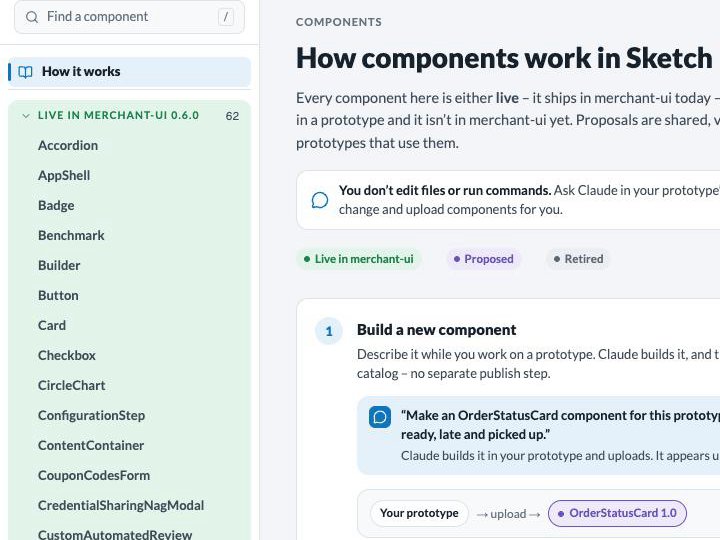
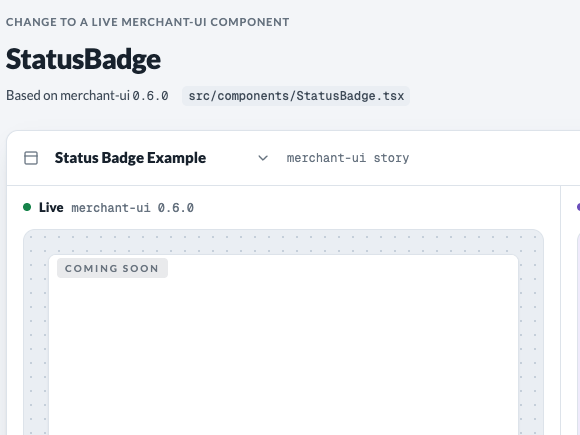
Before inventing a component, Claude looks for one that exists: first a live merchant-ui component, then a shared library one someone already proposed, and only then a new one. Ask it to propose a new component or a change to a live one.
Propose a change to StatusBadge: make it a pill.
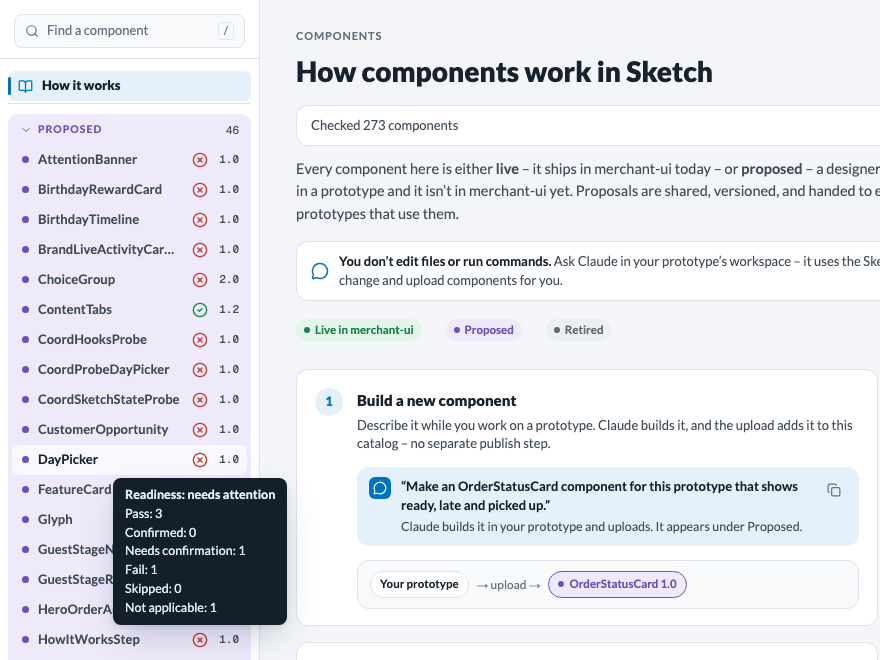
The Components catalog lists everything as Proposed, Live or Adopted, with a How it works page; Retired entries show only when Show retired is on. Finalize stops on component warnings until you confirm each one with your own reason; Claude asks you and never confirms for you. The full flow is in the design-system guide and proposing a component.
- Readiness. Claude builds each component ready for engineering: its own TypeScript file, with text, settings and click handlers passed in as props. Every upload tells Claude what it missed, and Claude fixes it without asking you. A green, yellow or red icon beside each library component shows its readiness.
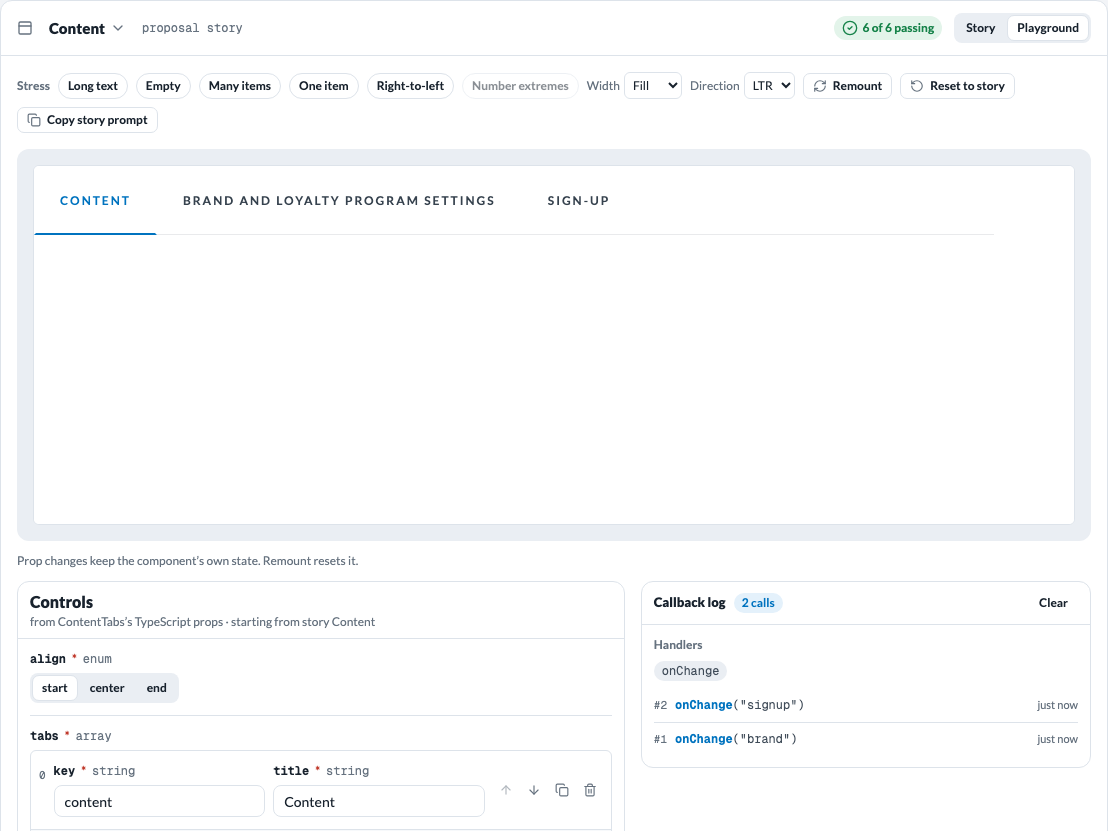
- Playground. Switch a component’s preview from Story to Playground to set every prop yourself, watch each handler call in the callback log, and try stress cases such as long text, no items or many items. It sits in Design assets, Components and on each catalog component page.
 ✥
 ✥
 ✥
 ✥
design-lab
design-lab (a private repository) holds Thanx's design standards, page starters and skills. A prototype's own files live in Sketch's staging folder, ~/.sketch/staging/<sketch>/<variant>, not in design-lab.
- Author with design-lab's standards and its merchant-ui React starter. It keeps a synced copy of Sketch's design system, refreshed with its thanx-ds sync tool.
- Its skills (/draft-iterate, /finalize, /notes) follow Sketch's own workflow: private draft, publish, finalize.
- A color or component the system lacks is proposed in Sketch, not added in design-lab.
Preview this design as a private draft in Sketch.
Finalize and what engineers get
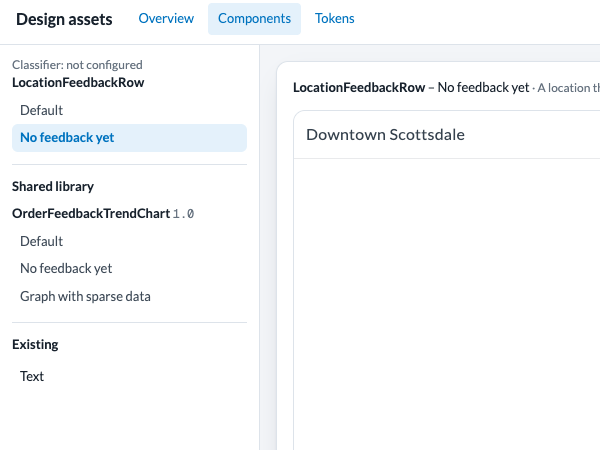
Before finalizing, open Design assets and make the design complete. It is your responsibility as the designer to make the components, tokens and notes ready for engineering.
- Components: check the names and select each state to review its appearance and behavior, including empty, loading or error states where needed.
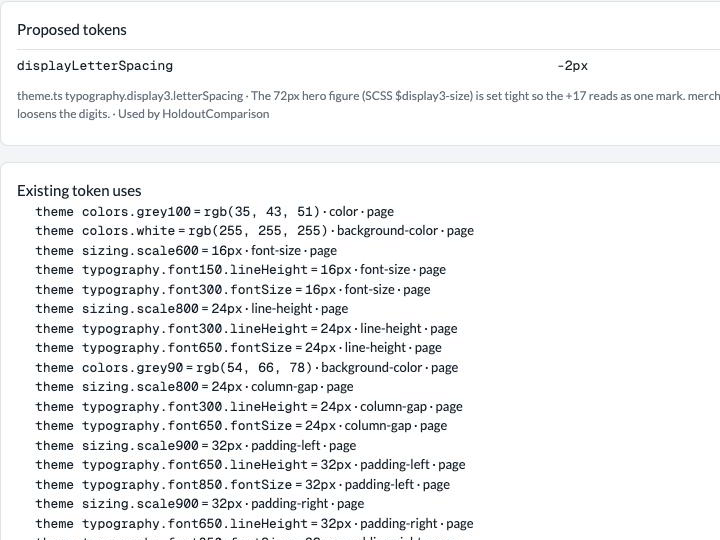
- Tokens: review proposed names, values and reasons alongside existing token uses; decide whether each proposal belongs in the shared library. These record the need; they do not add tokens to the library.
- Notes: make the design decisions, reasons and implementation guidance complete; ask Claude to update and push the notes before finalizing.
 ✥
 ✥
✥
Ask Claude to correct component names, states or token proposals, then review the updated version. Rework component warnings, or use Confirm in the Components view with your own reason if the flagged component is intentional. Claude must ask you first and never confirm on its own.
When the assets are ready, open Overview and copy its finalize prompt to Claude. Claude then fixes readiness problems on its own: it rewrites each component, has a fresh reviewer check every fix, and compares screenshots of every screen and state so nothing you can see changes. It asks you only about real decisions:
- upgrading the sketch’s design system, which affects every variant;
- confirming a component you meant as it is, with your own reason;
- anything still open when it stops making progress.
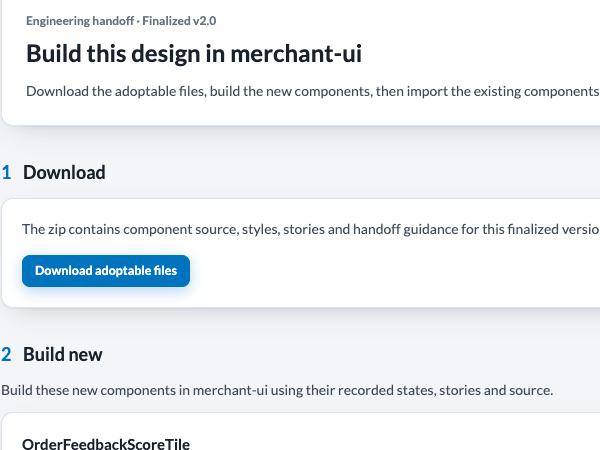
When the check is clean, Claude tells you what changed in each component, with a Playground link for a final look, and publishes the next whole-number version only after you say yes. Finalize snapshots the notes too. Engineers get the adoptable files (the package they build from) in the finalized version's Design assets.
Please finalize version 0.4 of sketch "my-sketch", variant "my-variant".
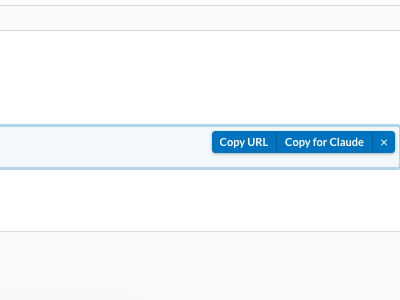
Merchant-dashboard and shadcn sketches cannot be finalized and have no adoptable files (the package engineers build from). Their hand-off is a published version plus implementation references: turn on the viewer's developer mode (the code-brackets button), choose Select element, then Copy for Claude. Reports finalize through their own flow; see Reports.
Engineers download the files from the finalized version's Design assets: adoptable files, implementation references.

 ✥
 ✥
Reports
A report is a sketch that reads live merchant data. Reports have their own Reports tab and climb the same ladder: a private draft, published 0.x versions, then Finalize (1.0).
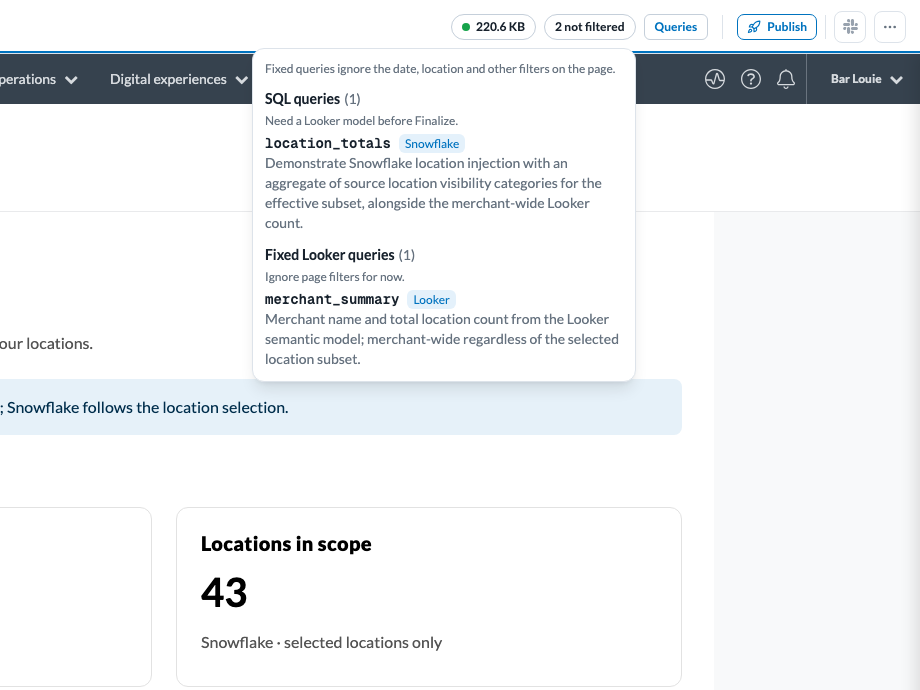
- SQL while designing. Where Looker can’t yet answer a section, Claude may use Snowflake SQL, in the draft and in every 0.x version. Finalize refuses every SQL query.
- N not filtered. The report’s top bar counts the fixed queries that ignore the page’s date, location and other filters. Click it for the list: SQL queries, which need a Looker model before Finalize, and fixed Looker queries.
- Finalize. For each SQL query, Claude searches every Looker model for an existing path, proves the numbers match for at least two merchants, and has a fresh reviewer check the result. It then converts the section, or writes a plan for the data model it needs; Finalize waits until that model lands. Asking again first checks whether the planned fields exist, and stops at “nothing has changed” when none do.
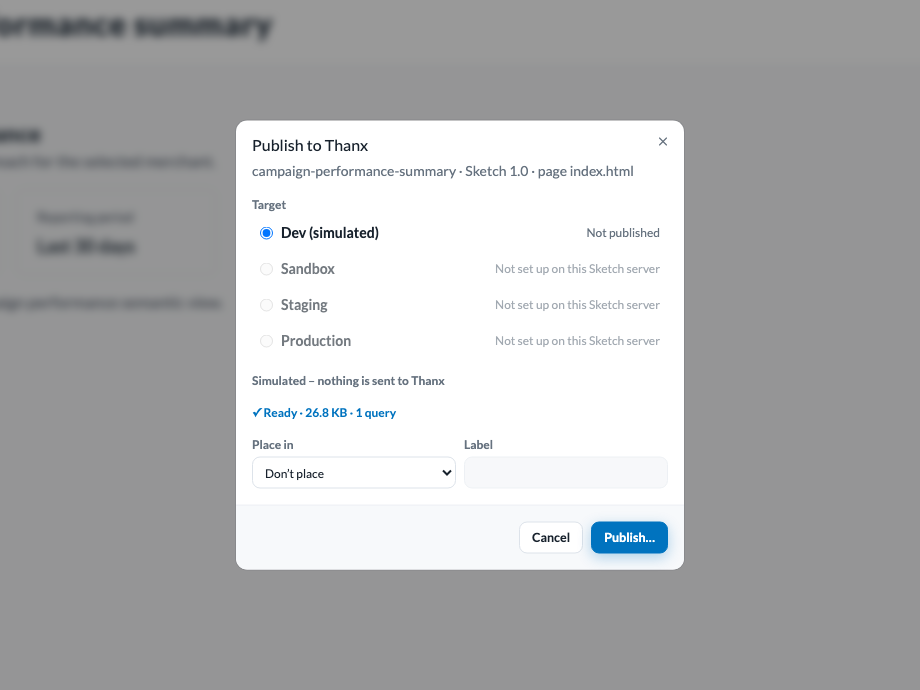
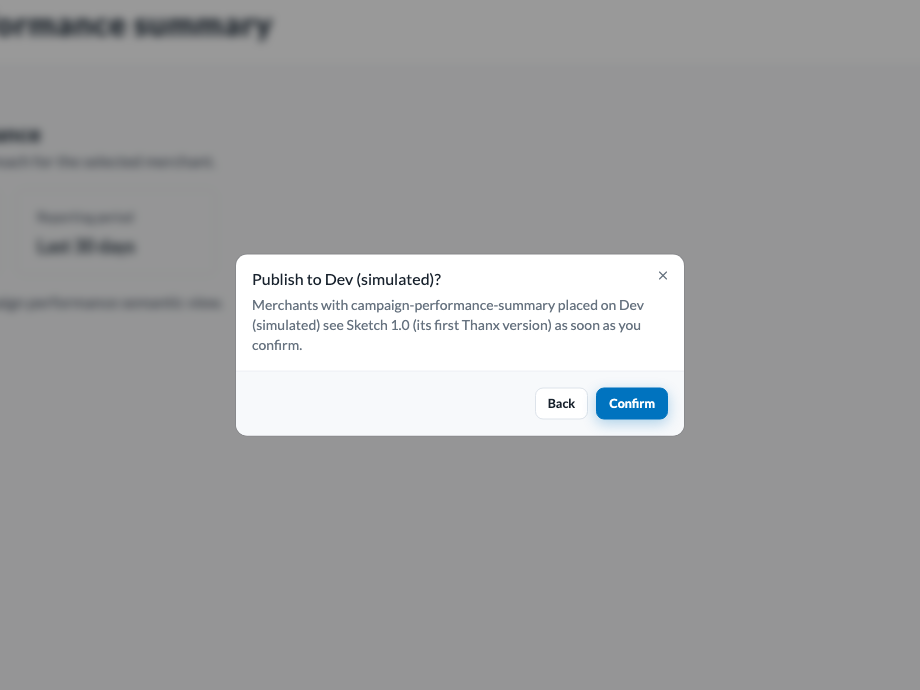
- Publish to Thanx. Publish, right of Queries, sends a finalized version (1.0, 2.0, …) to the merchant dashboard. On an iteration such as 0.26 or 1.3, it is disabled: “Finalize this report to publish it to Thanx”. You can still publish an older finalized version while the latest is an iteration. Pick Dev, Sandbox, Staging or Production; Sketch runs a dry run, and Publish stays off until it passes. Every publish asks you to confirm, and Production also asks you to type production. Thanx runs only semantic queries. Where no target is set up, the dialog opens read-only.
Finalize my report.
 ✥
 ✥
 ✥
Glossary
- Sketch
- The platform, and also one piece of work on it: a sketch holds one or more variants.
- Variant
- One direction for a sketch. Extra ideas go inside the draft, not in new variants.
- Draft
- A private, replaceable copy only you can open. Not a version.
- Page state
- A variation the page declares, set from Scenarios in the dock. A Blueprint can pin it as a tab.
- Publish
- Makes the next minor version (0.x, or N.x after a finalize): shareable and commentable.
- Finalize
- The hand-off step that makes version N.0. React (merchant-ui) sketches and reports only.
- Readiness
- Whether a component is ready for engineering: green, yellow or red. Finalize enforces it.
- Playground
- A component preview where you set every prop and watch each handler call.
- Bell
- Your in-app notifications. Settings choose what also reaches Slack.
- Version label
- 0.1, 0.2… while iterating; 1.0, 2.0… when finalized.
- Revision note
- A pin that asks Claude to change something. Resketch applies it.
- Comment
- A pin for discussion. Not applied unless you resketch the thread.
- Resketch
- Claude's pass that turns pending revision notes into one new version.
- Brief
- The context page a sketch carries for whoever builds or revises it next.
- Decision record
- A notes page of numbered decisions, optionally tagged on the screen.
- Share link
- An external link pinned to one version. No expiry, no revoking.
- Design system
- The tokens and components a sketch is built from. Chosen when you start.
- Adoptable files
- The package engineers build from, exported from a finalized version.